
A. Profile and Subscription
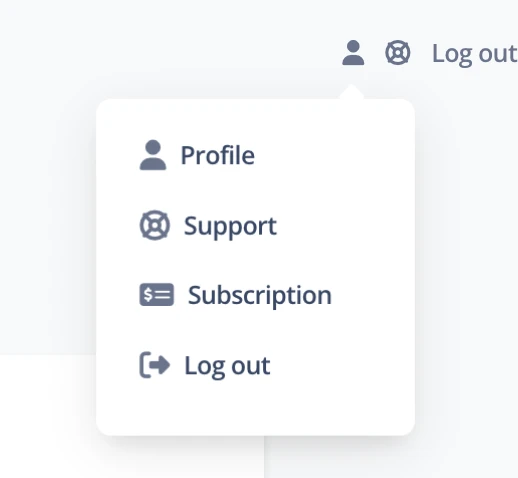
In the upper-right corner of the screen, you will find a user icon. When you click this icon, a small menu appears with three options: Profile, Subscription and Log out.
Note: If you are using a cashier account, the Subscription option will not be available.
A.1 Profile
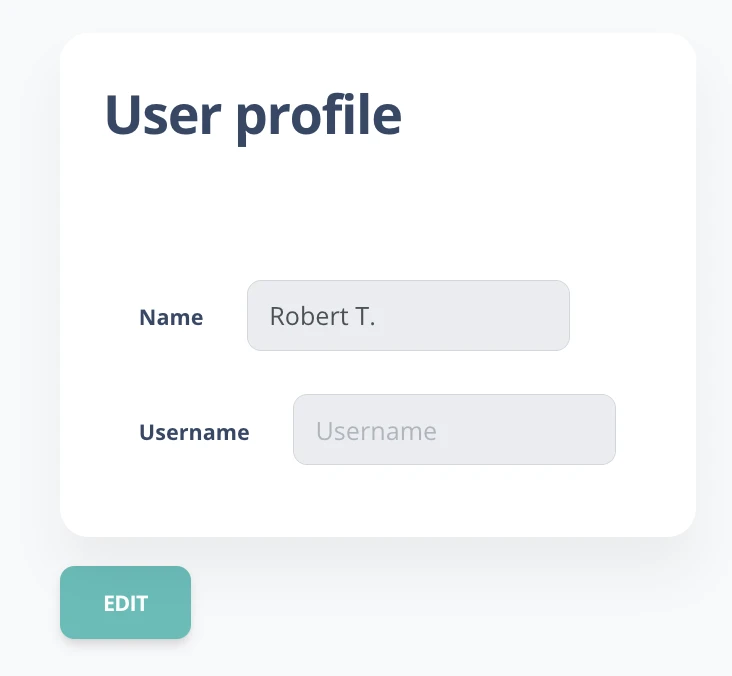
In the Profilesection, you can view and edit some personal details:
- Profile name: Shows the profile name.
- Username: The name you use to sign in to the system (not editable).
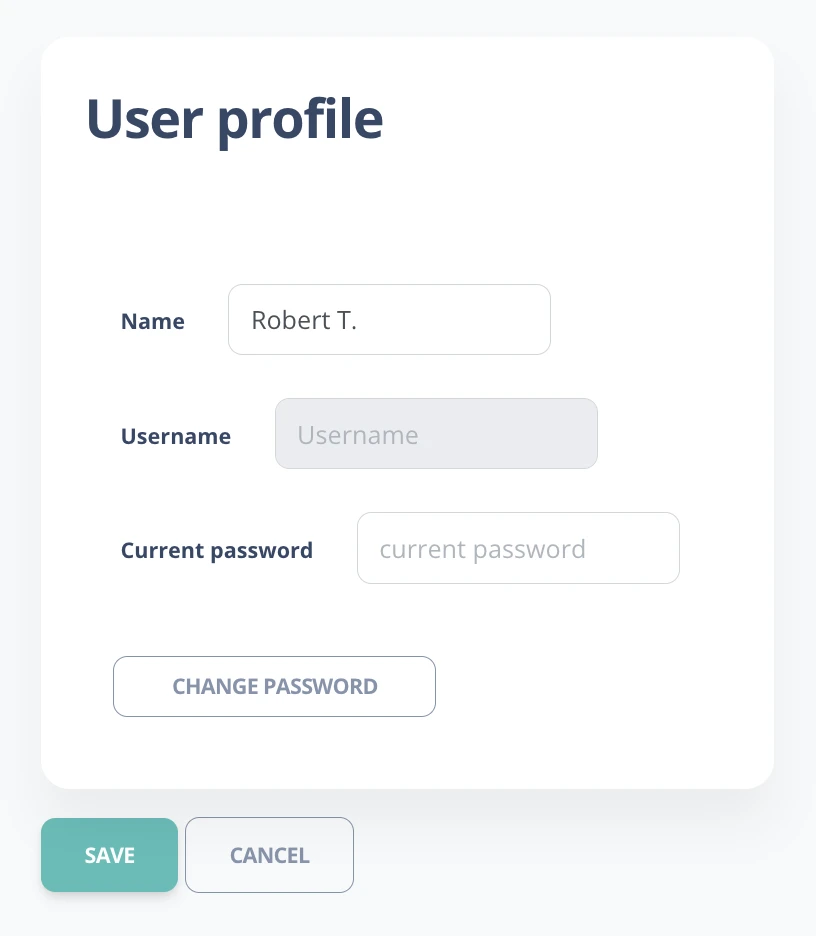
- Edit profile: Click the Edit button to change the profile name or password.
A.2 Subscription
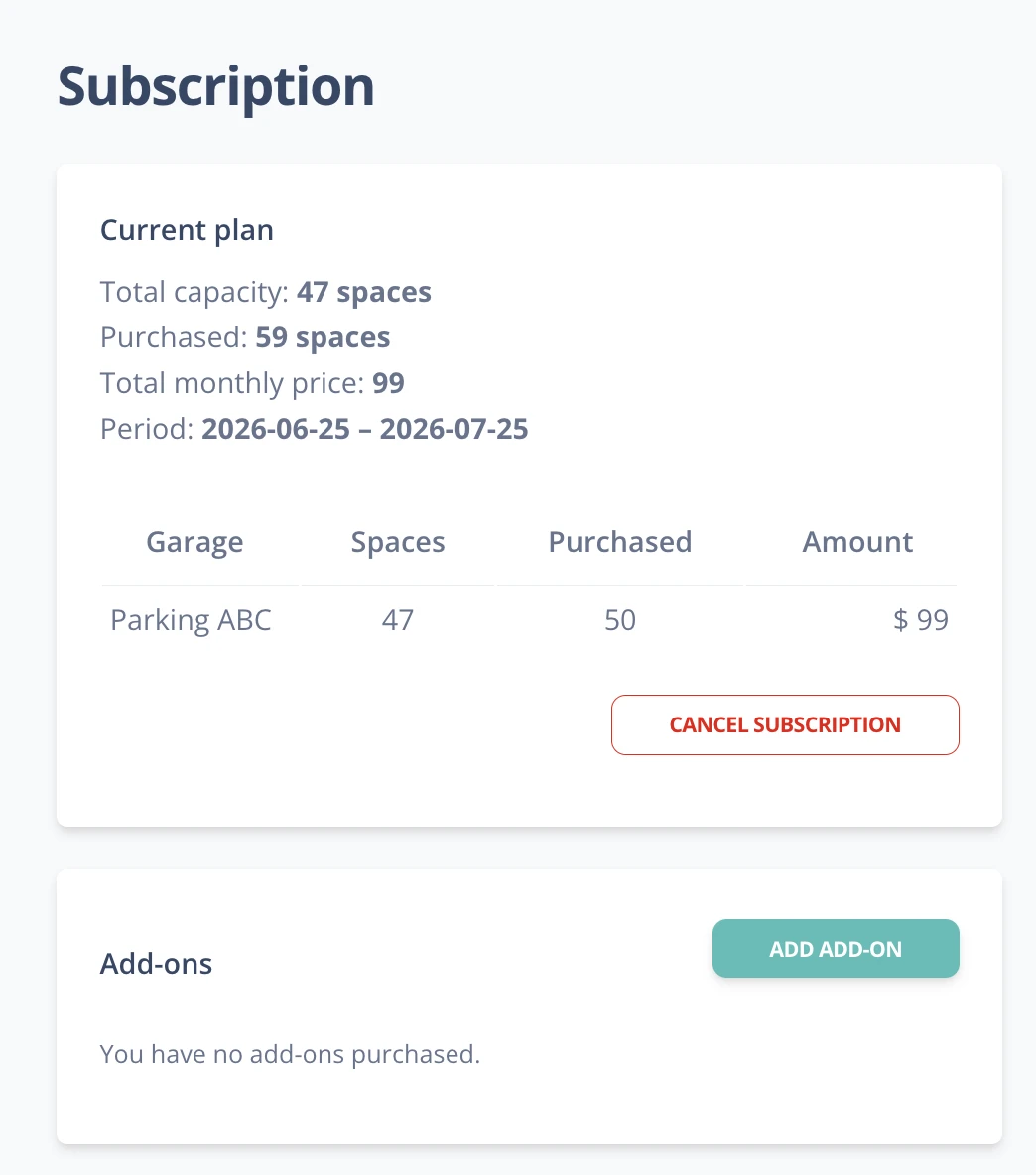
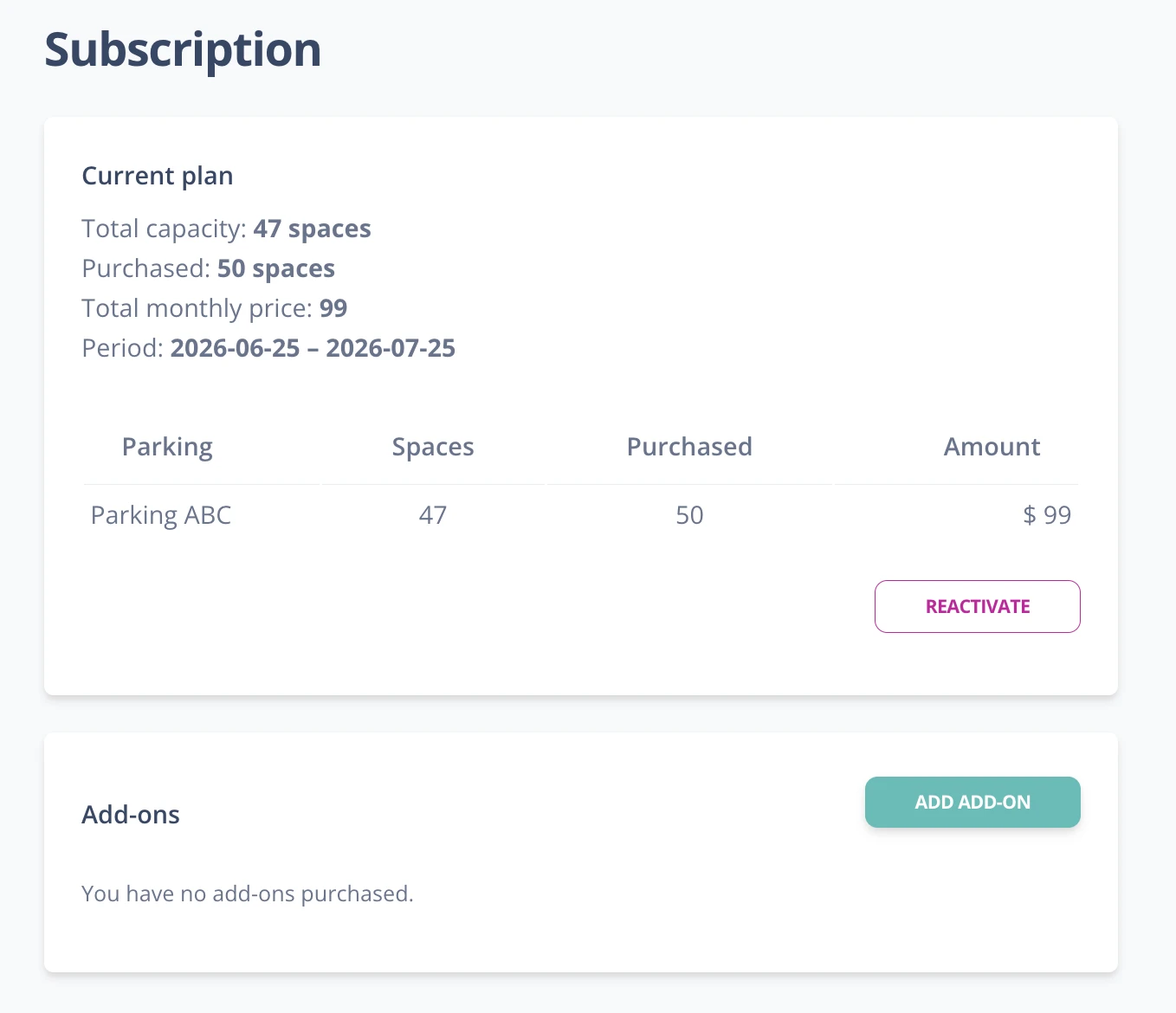
In the Subscriptionwindow, you can view and manage details about your current plan:
- Plan details: Information is shown such as:
- Start and end date of the current plan.
- Plan price, shown in ARS (Argentine pesos) or USD (U.S. dollars), depending on your country of residence.
- Number of additional garages contracted and whether the car wash module is enabled (one car wash per active garage).
- Billing: At the end of each plan period, a new invoice will be generated for the same amount and duration.
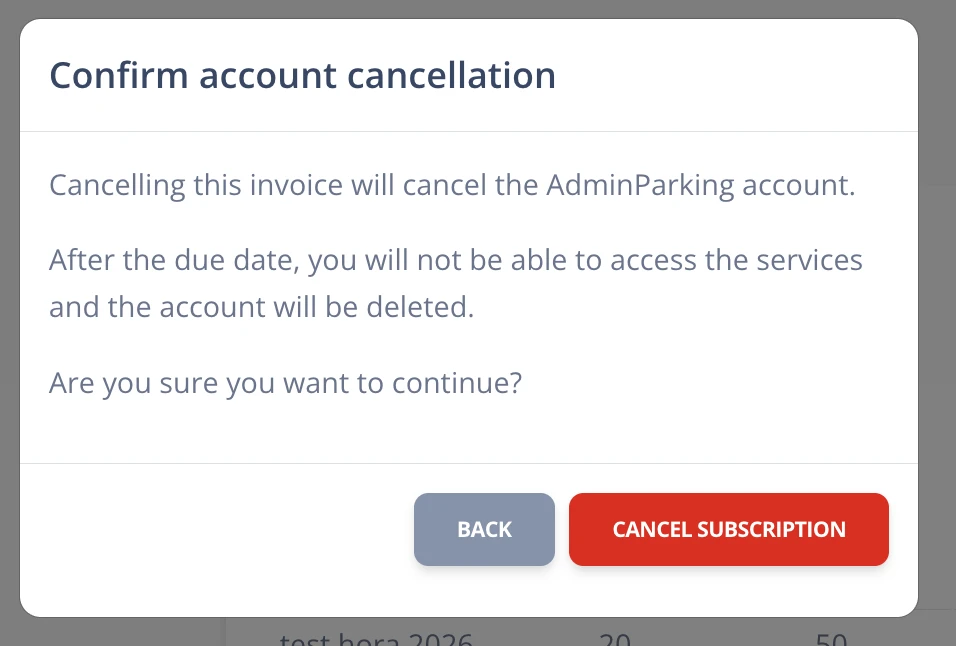
- Cancel plan: You can cancel the plan by clicking the Cancelbutton. A confirmation window will open to prevent accidental cancellations.
- When you cancel, no new invoices will be generated, and once the current period ends, the account will be deactivated. You can reactivate the plan within the active period by clicking Reactivate plan.
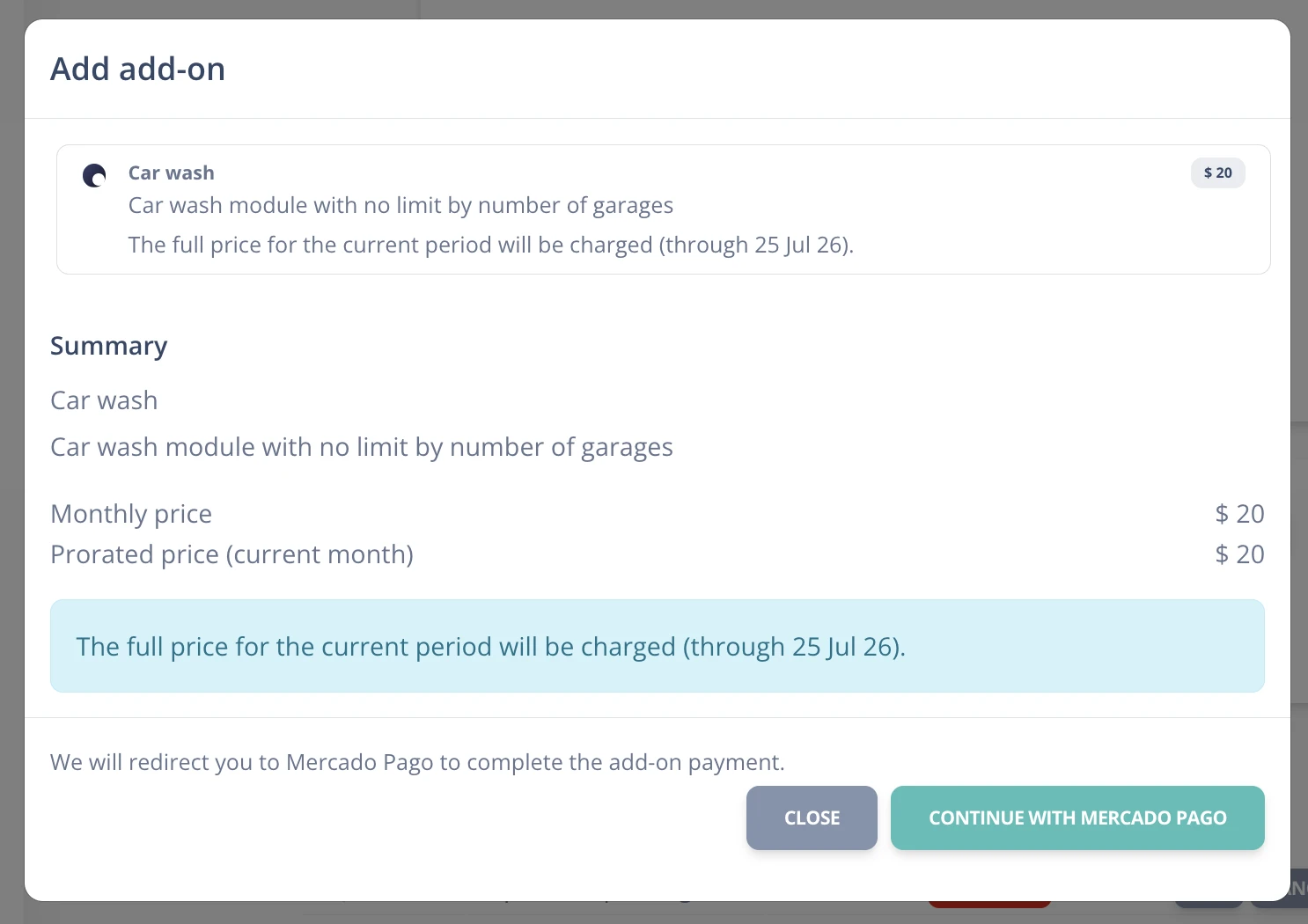
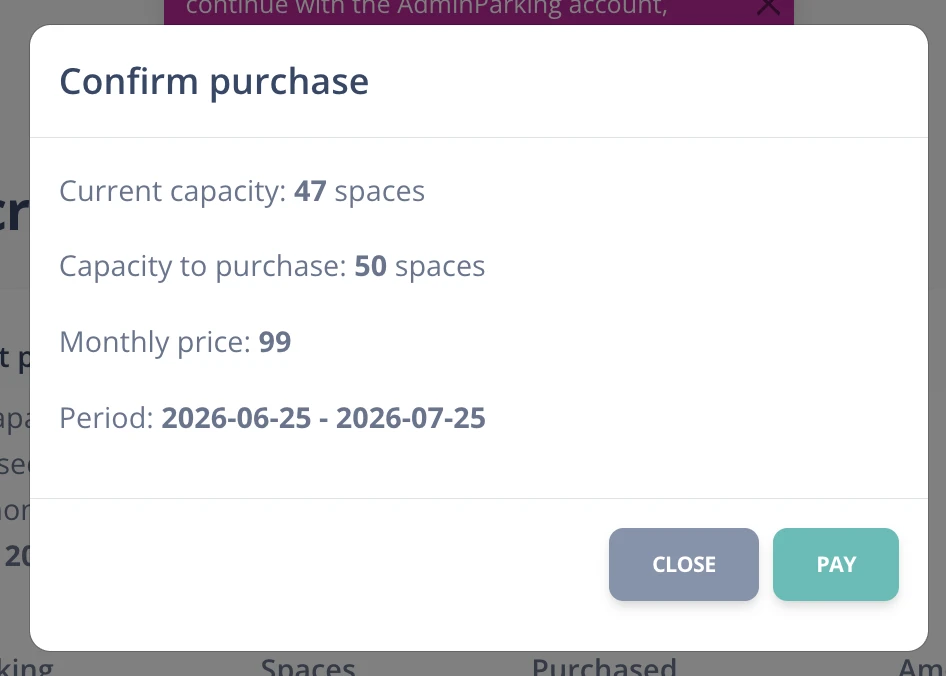
- Change plan: To make changes such as adding or removing additional garages or enabling/disabling modules (such as car wash), click Change plan.
- The current plan, available add-ons, and total to pay for the new services will be shown.
- If the change involves an add-on (such as adding a garage), the add-on cost and car wash module cost will be detailed.
- If there is available credit (for example, due to unused plan days), it will be deducted from the total amount.
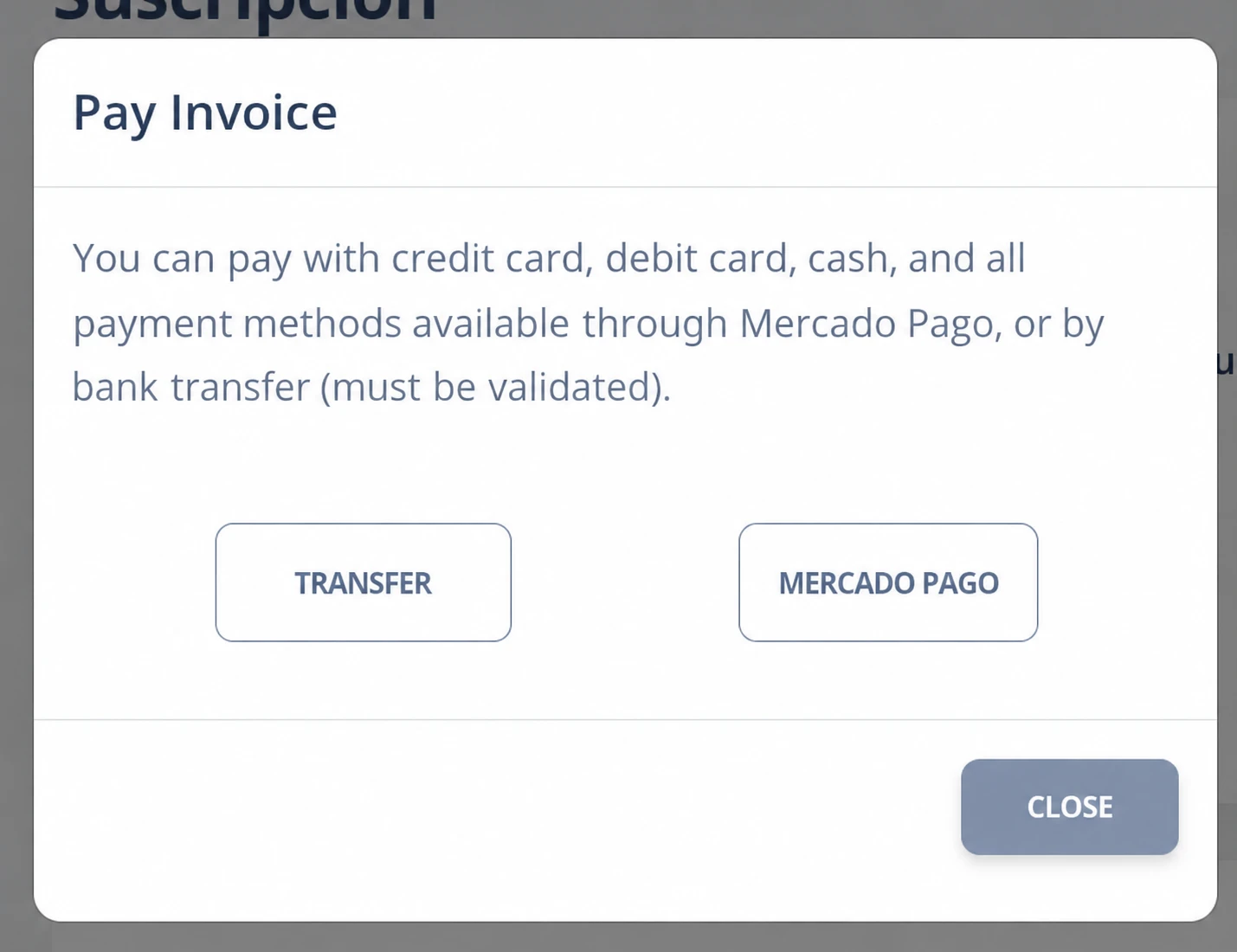
- Payment methods:
- Argentina: You can pay by bank transfer or using Mercado Pago. For bank transfers, you must send the receipt to validate the payment. Mercado Pago is validated automatically.
- Rest of the world: Payment is made through PayPal and is validated automatically, like Mercado Pago.
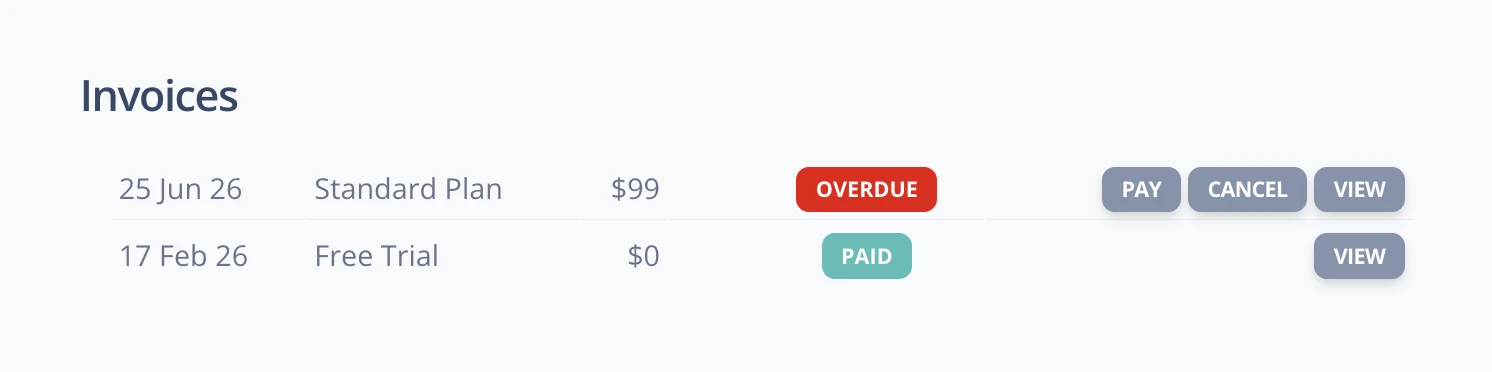
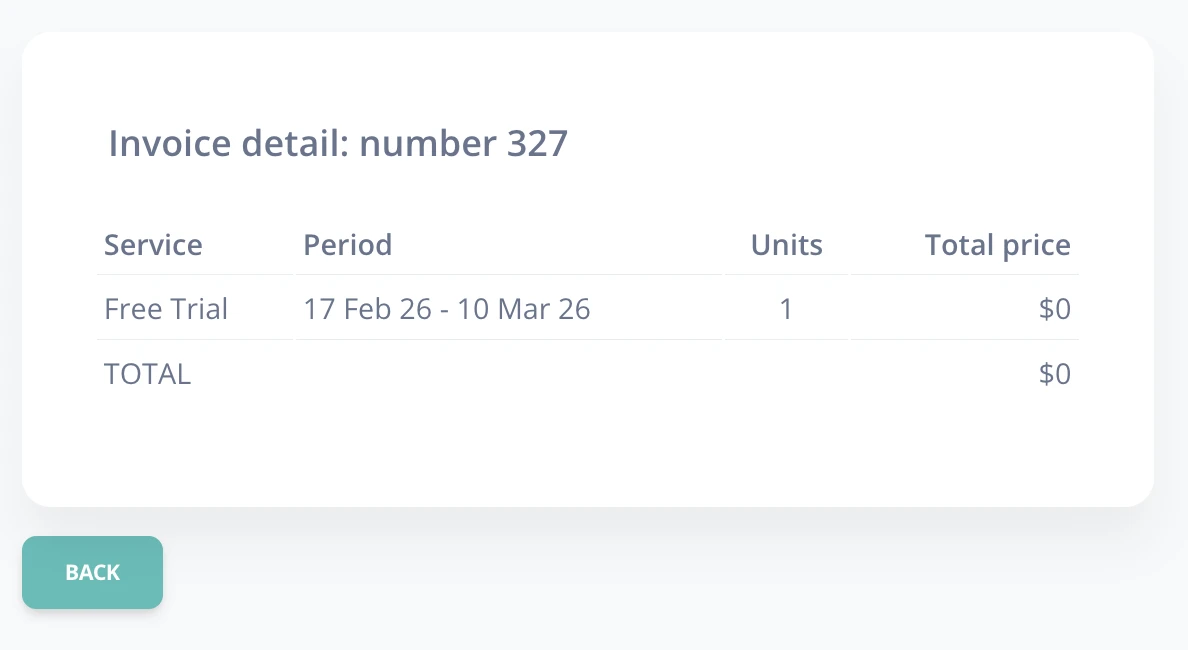
- Payment and movement history: At the bottom of the screen, you can view the history of plans, amounts, and invoices. By clicking the Viewbutton, you can review the invoice details and corresponding payment.
A.3 Log out
The Log outoption logs you out of the system and closes the session securely.