Car wash module - Cashier user
This module is available during the trial period. After that, it will be an add-on service that must be contracted to remain visible in the menu.
1 Vehicle entry into the car wash
Previous requirements:
At least one car wash service with its rate must be configured from:
- Settings > Car wash: register the available services.
- Settings > Car wash rates: assign prices by vehicle type.
Entry process:
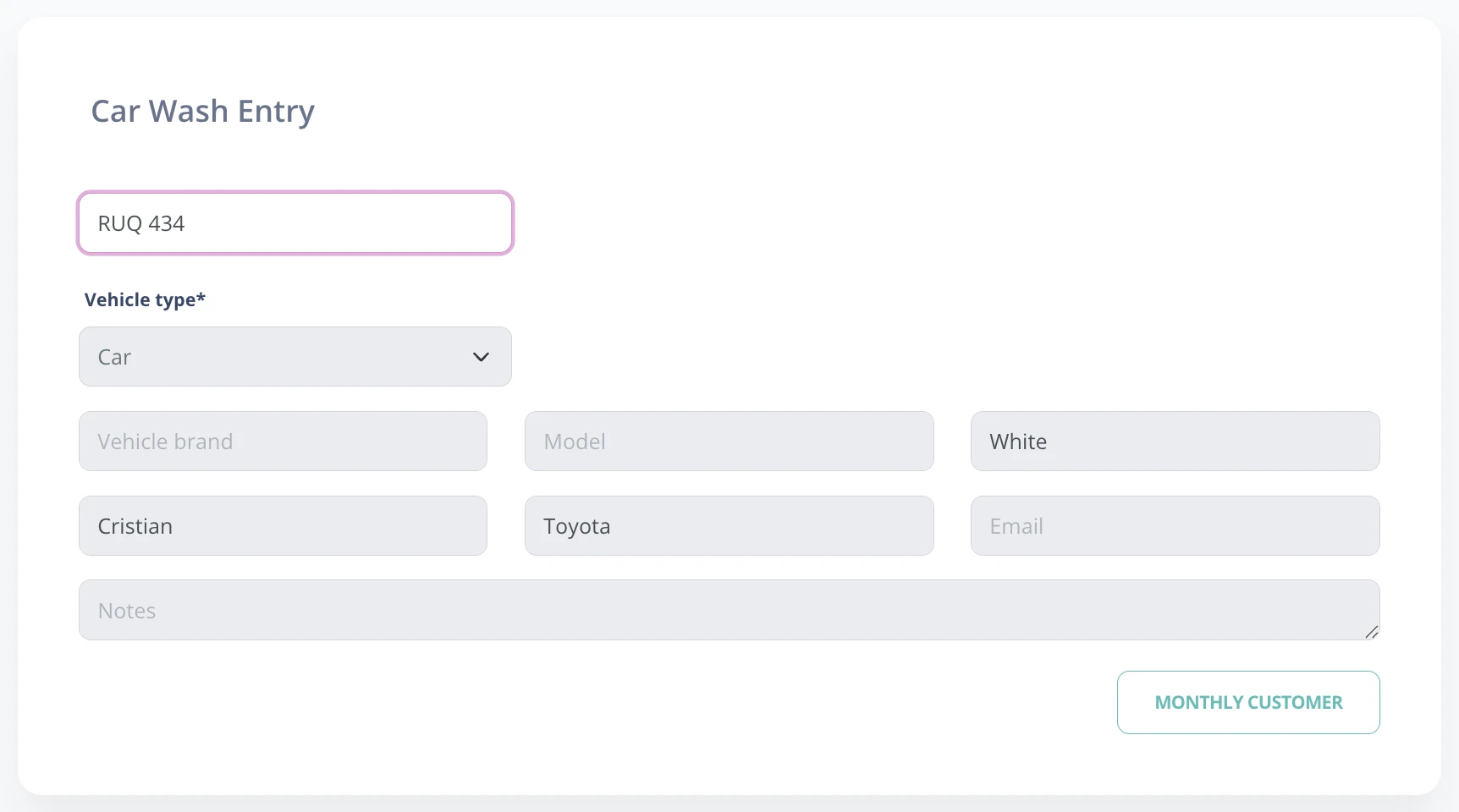
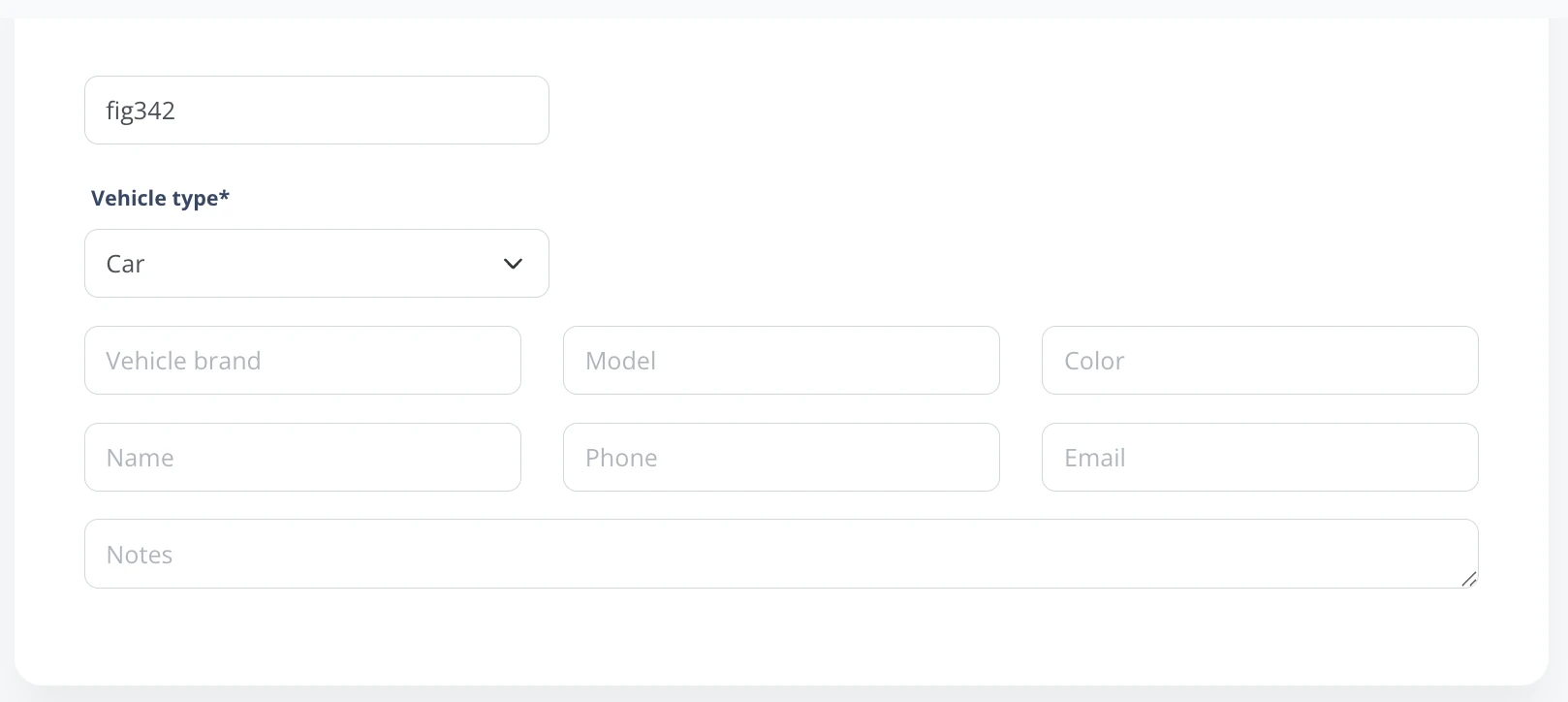
- Enter the license plate:
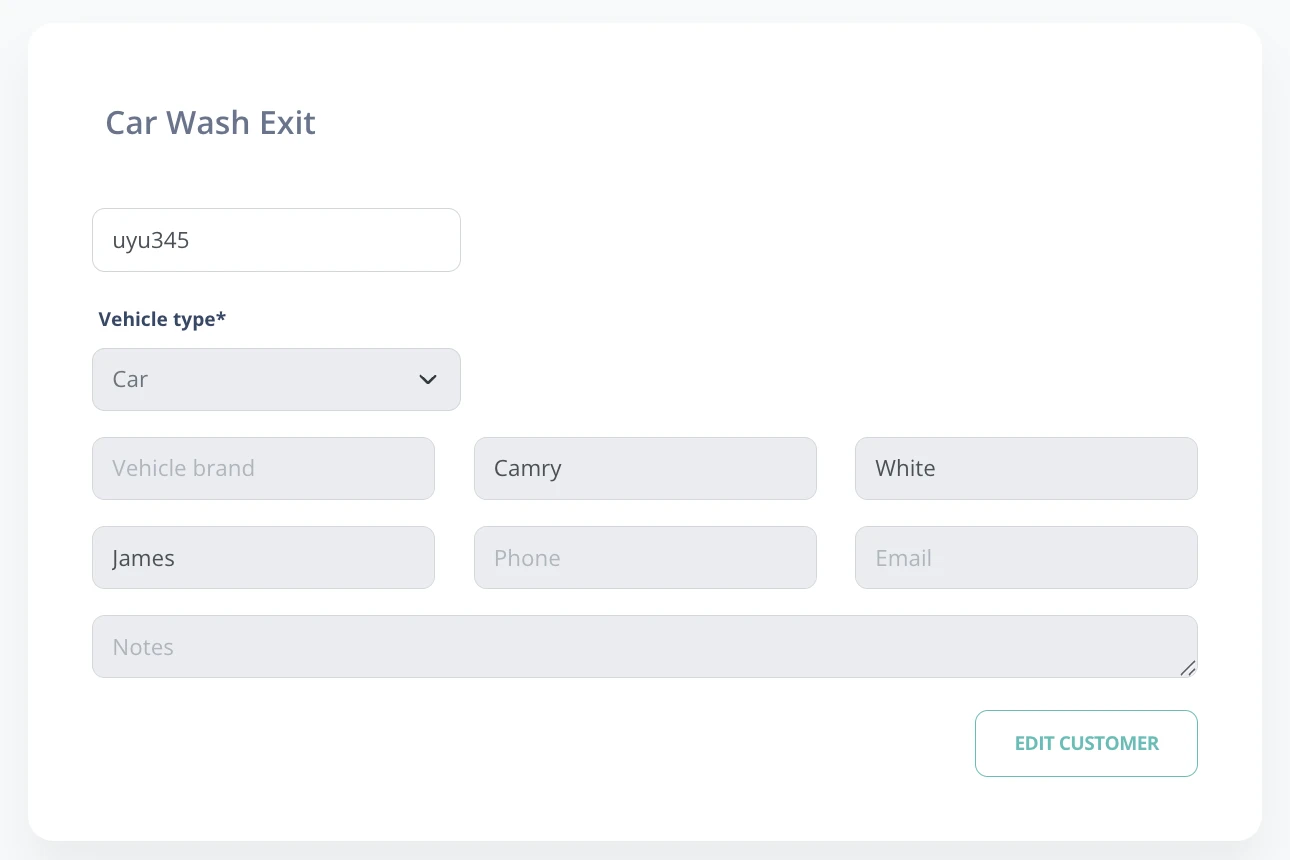
- If it matches a registered customer, their data will load automatically.
- If it is a new customer, the data will be saved for future entries.
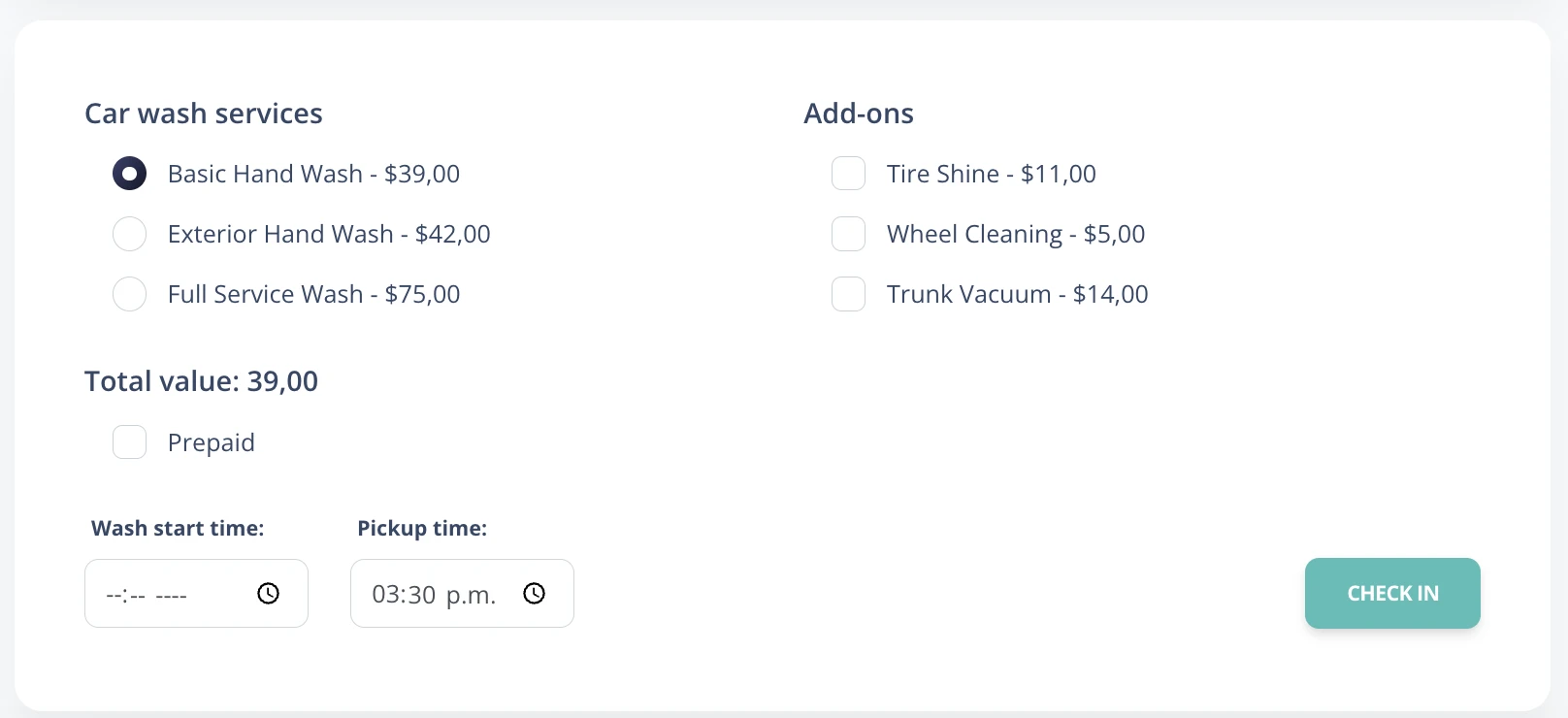
- Car wash service selection:
- Optional: Add estimated wash start and end time for better organization.
- Prepaid: This option can be selected to charge the service in advance.
Note: It is recommended to enter the full license plate to avoid conflicts with similar plates.
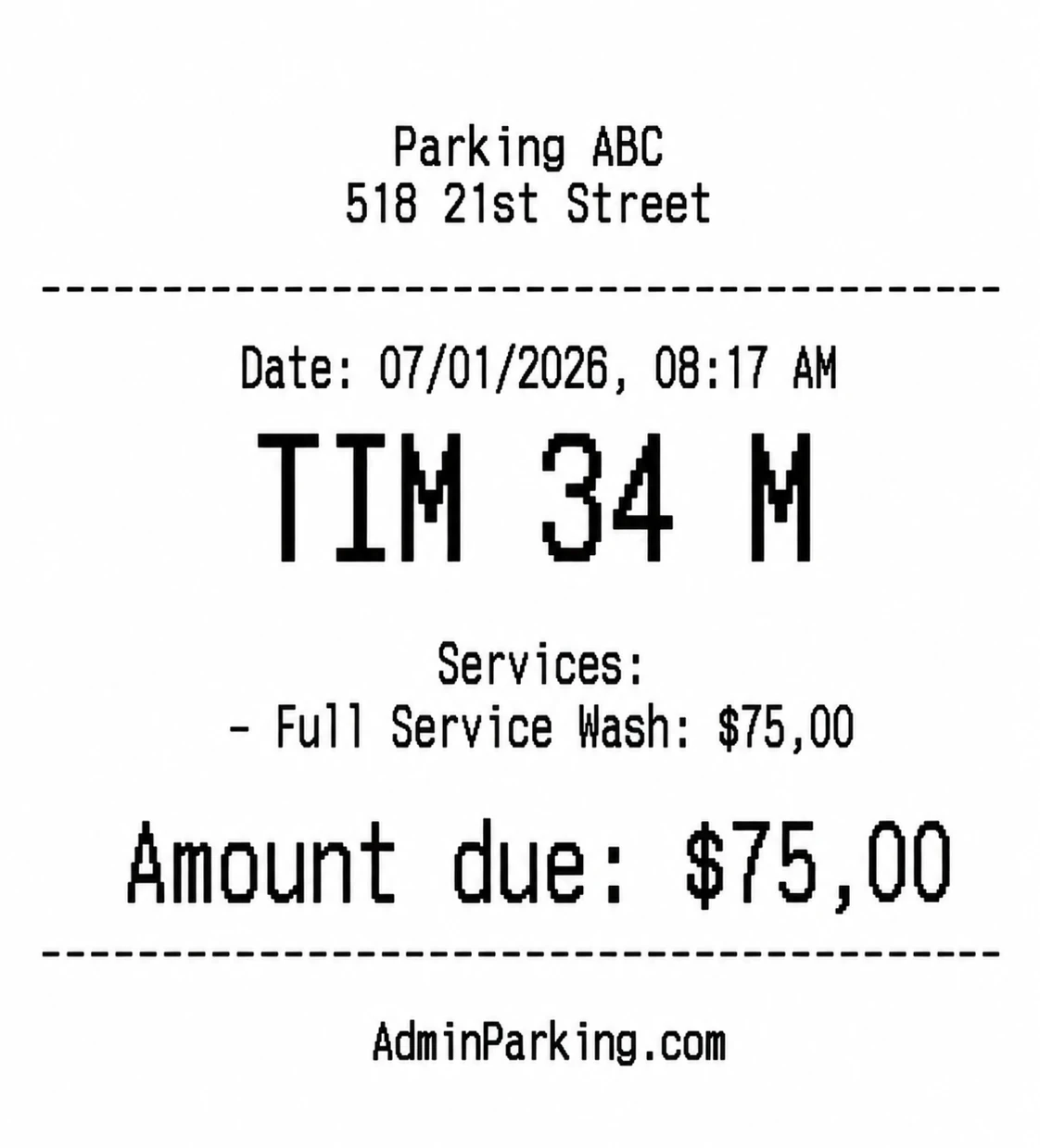
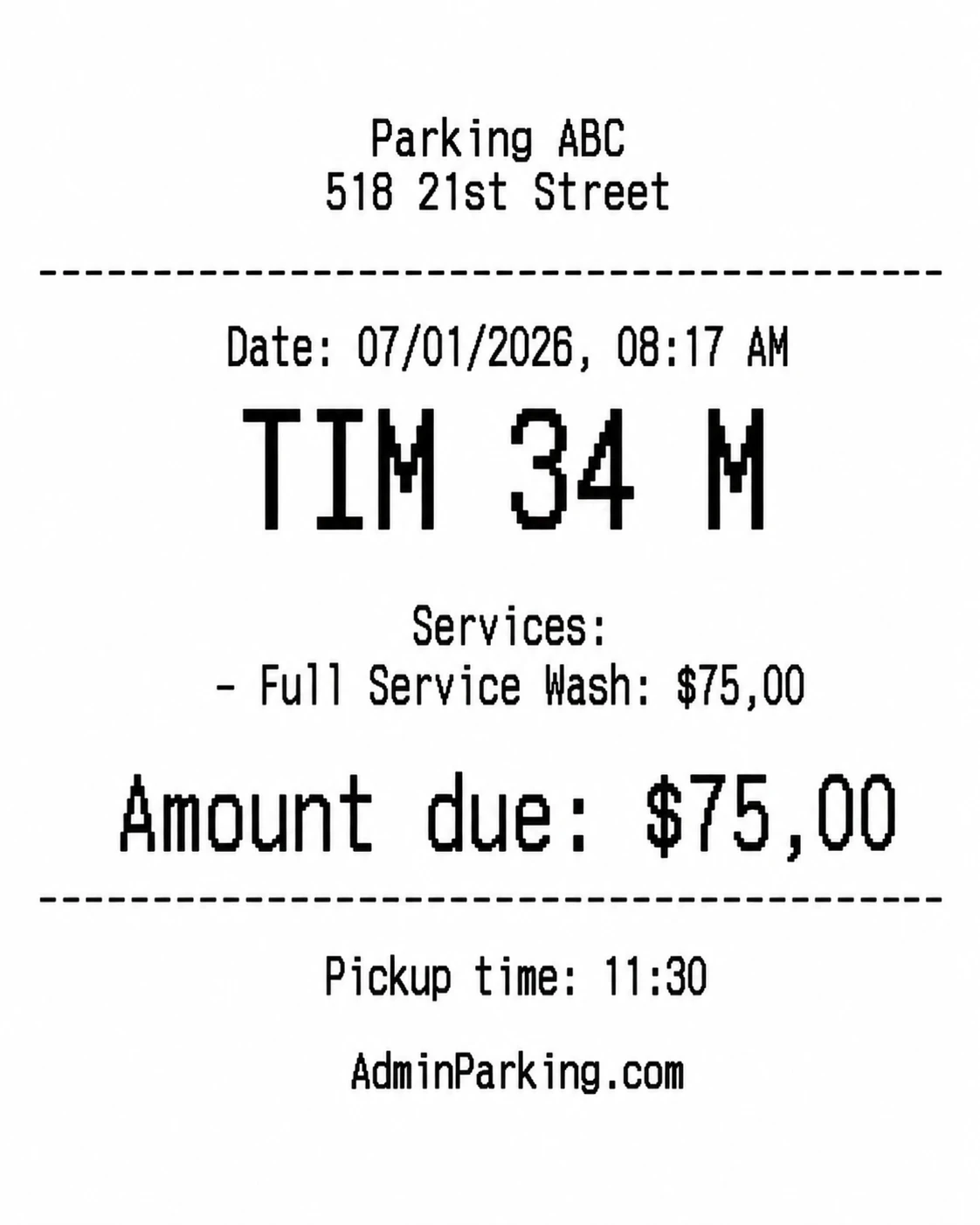
Ticket generation and printing
Depending on configuration, different ticket printing options are available.
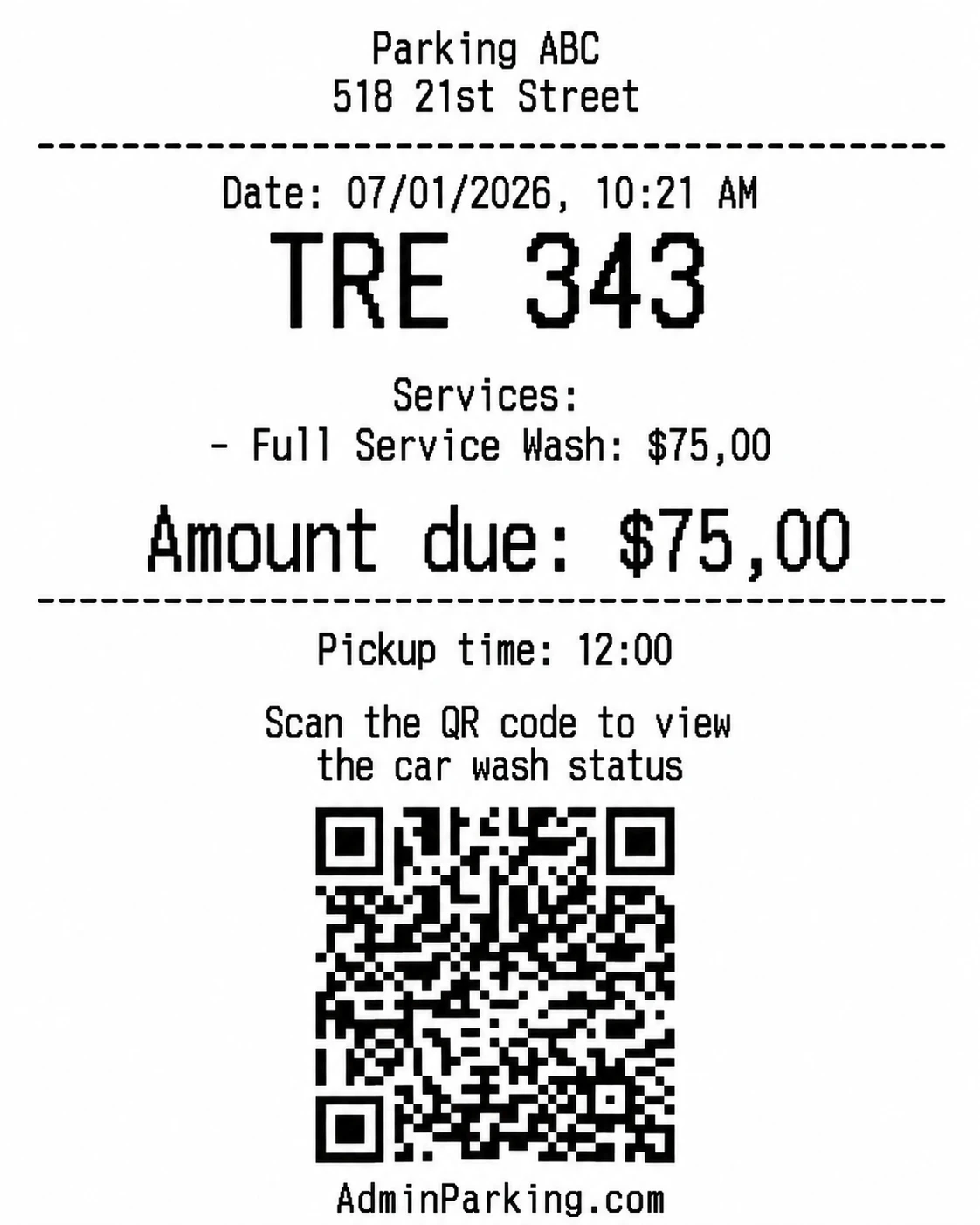
- Customer ticket:
- Shows the selected service and, if entered, the estimated pickup time.
- This ticket is given to the customer as proof of entry.
- It can include a QR code to view wash status and pay online.
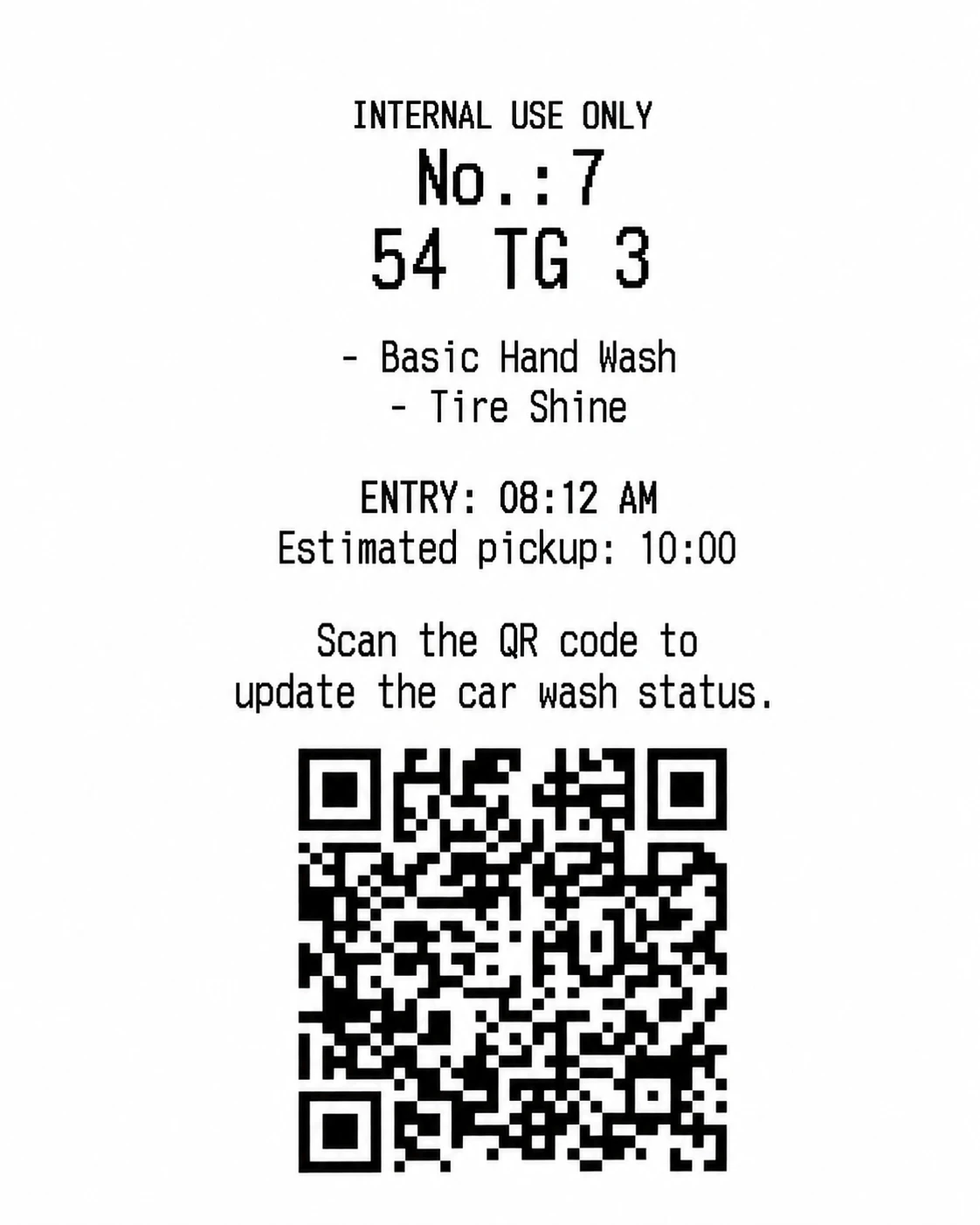
- Internal control ticket:
- Used by car wash employees to manage order and services.
- Includes an internal QR that allows updating the wash status (waiting, washing, completed).
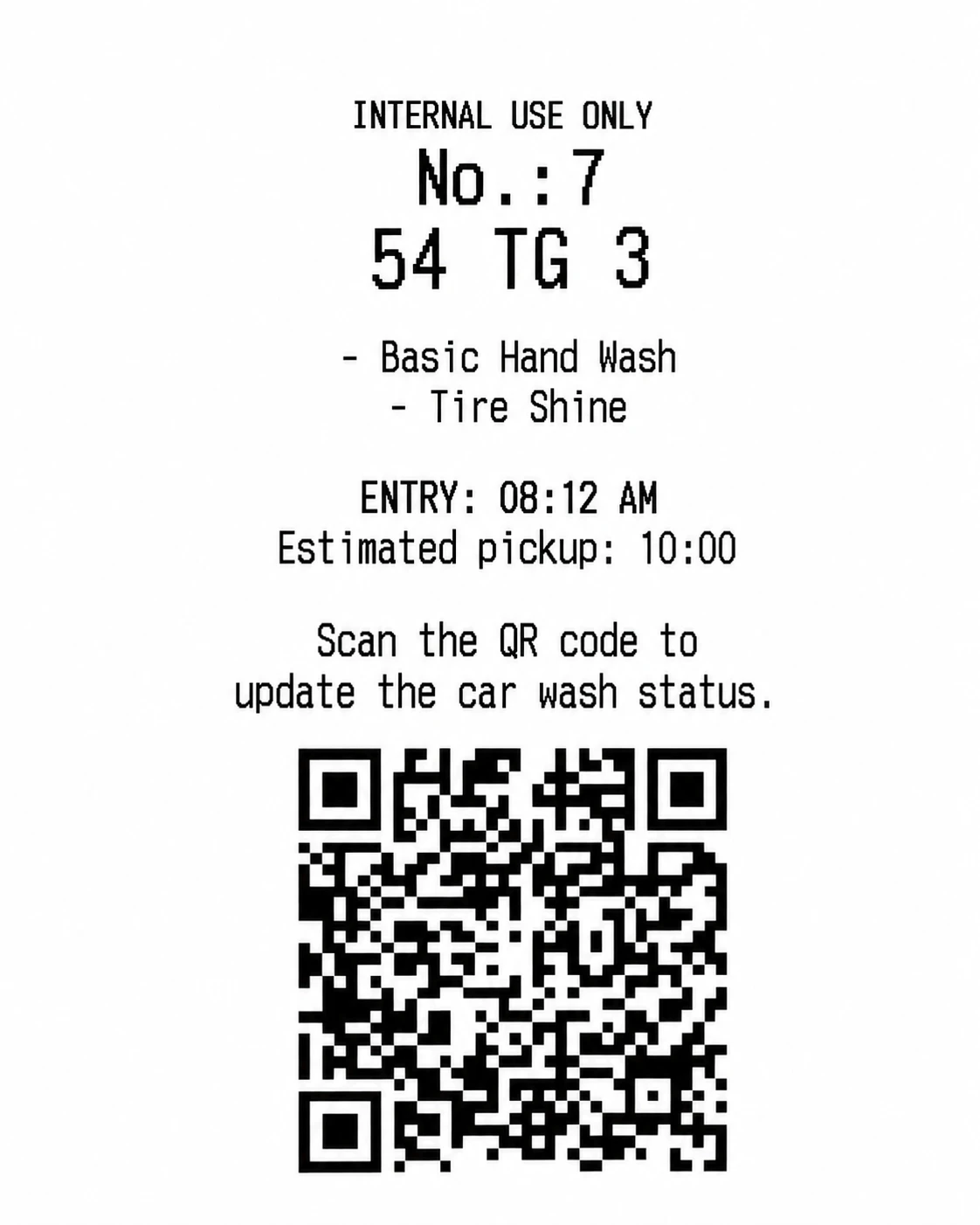
Customer QR code use
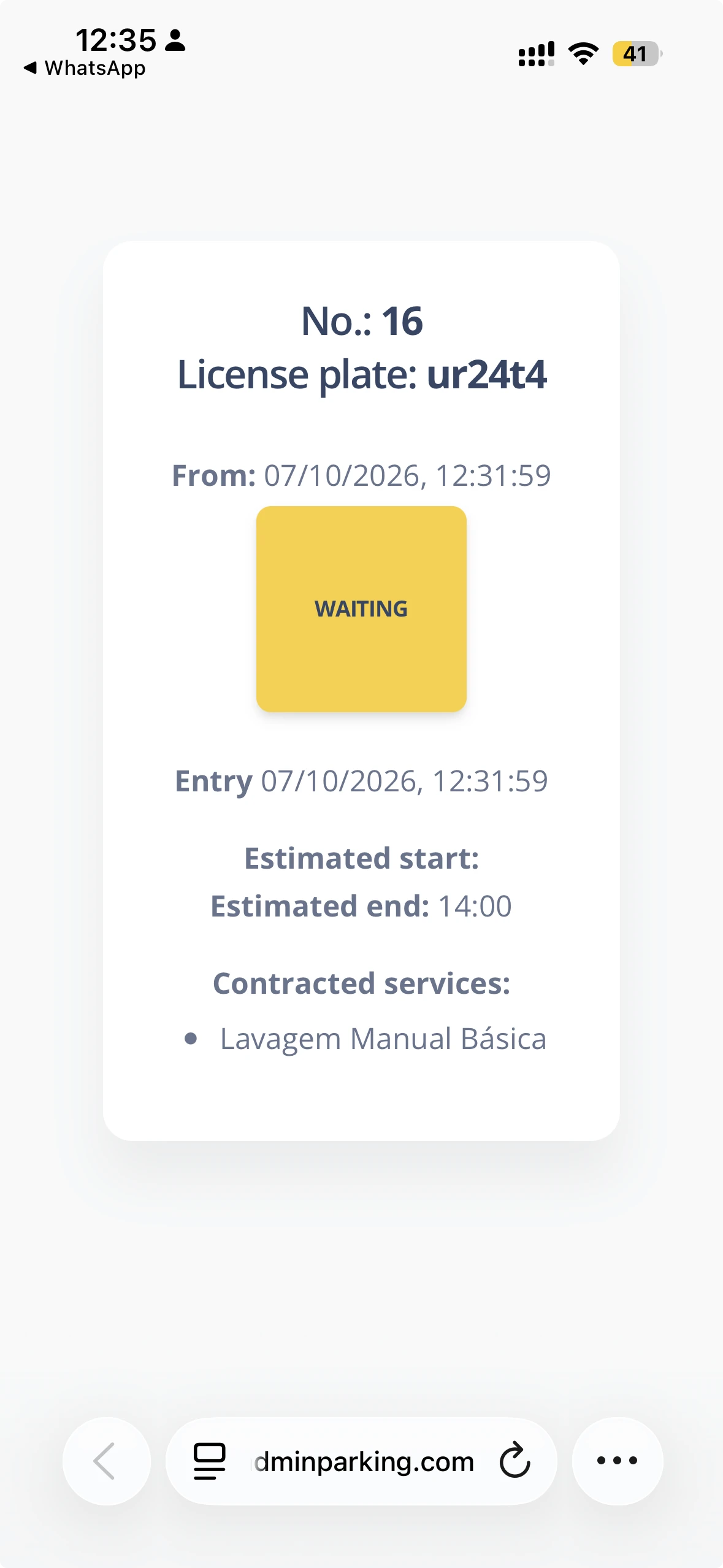
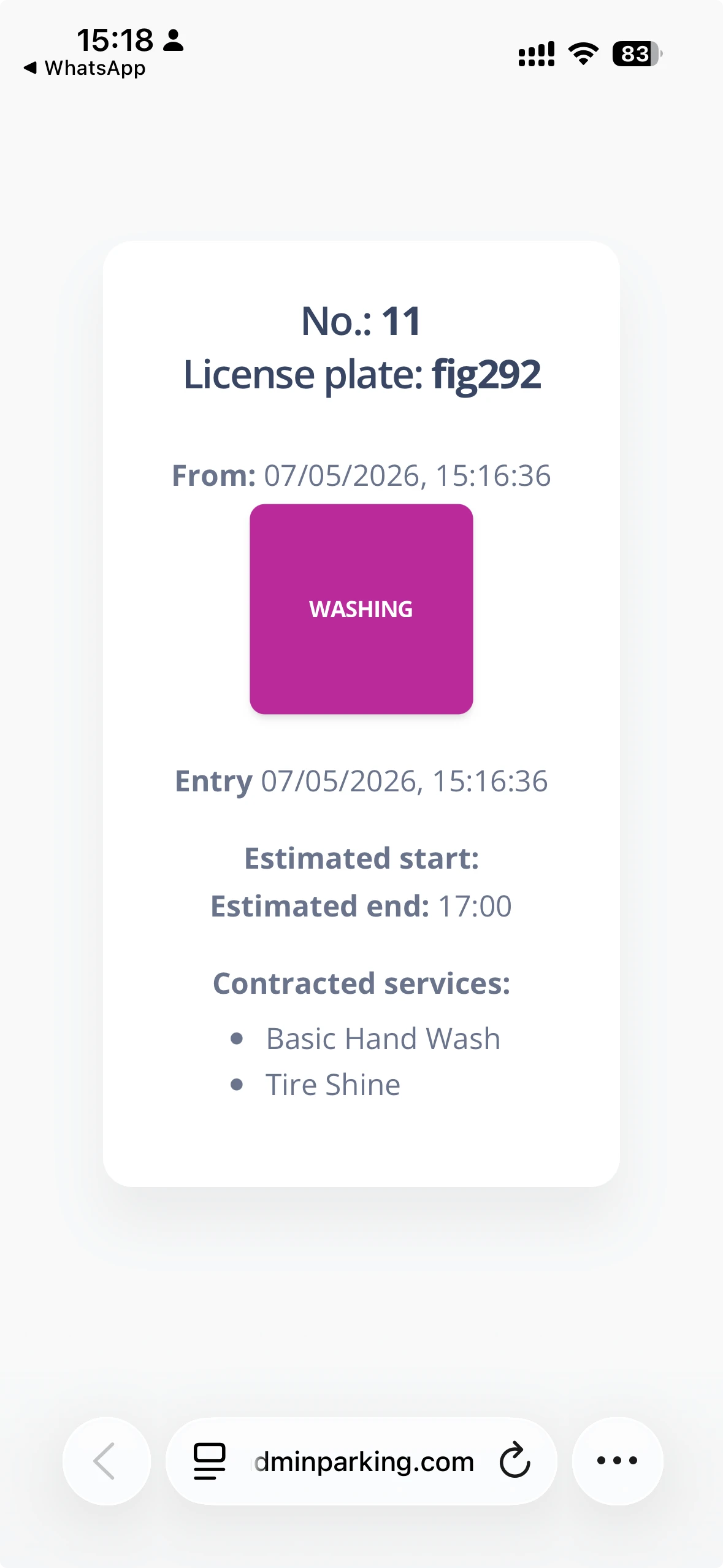
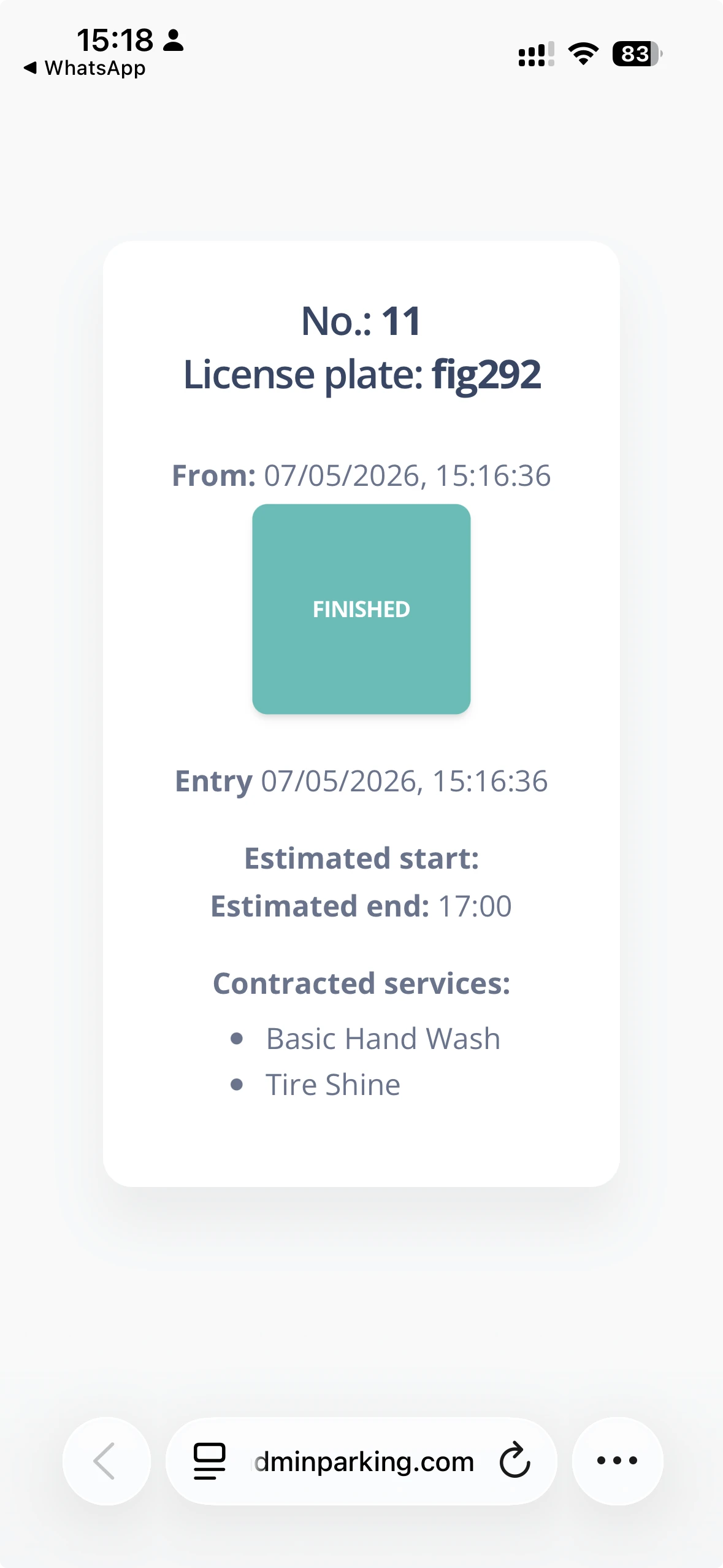
- When scanning the QR, essential service data is shown: entry time, contracted services, and process status.
- Available statuses:
- Waiting: The wash is pending.
- Washing: The vehicle is being washed.
- Completed: The service has ended and the car is ready for pickup.
- If WhatsApp is enabled, tapping the number on the screen lets the customer open WhatsApp to contact directly.
- If Mercado Pago is configured as a payment method, the QR lets the customer pay online from their device.
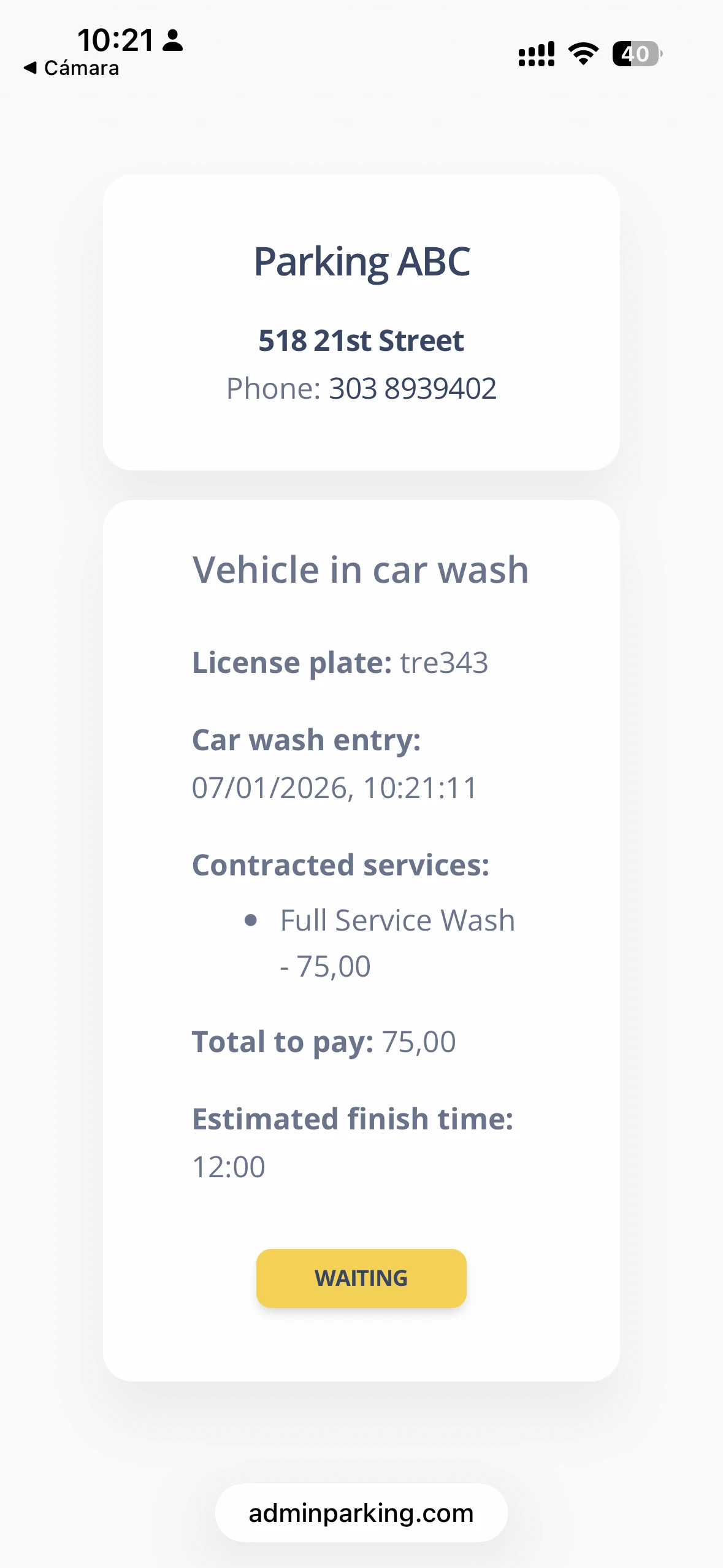
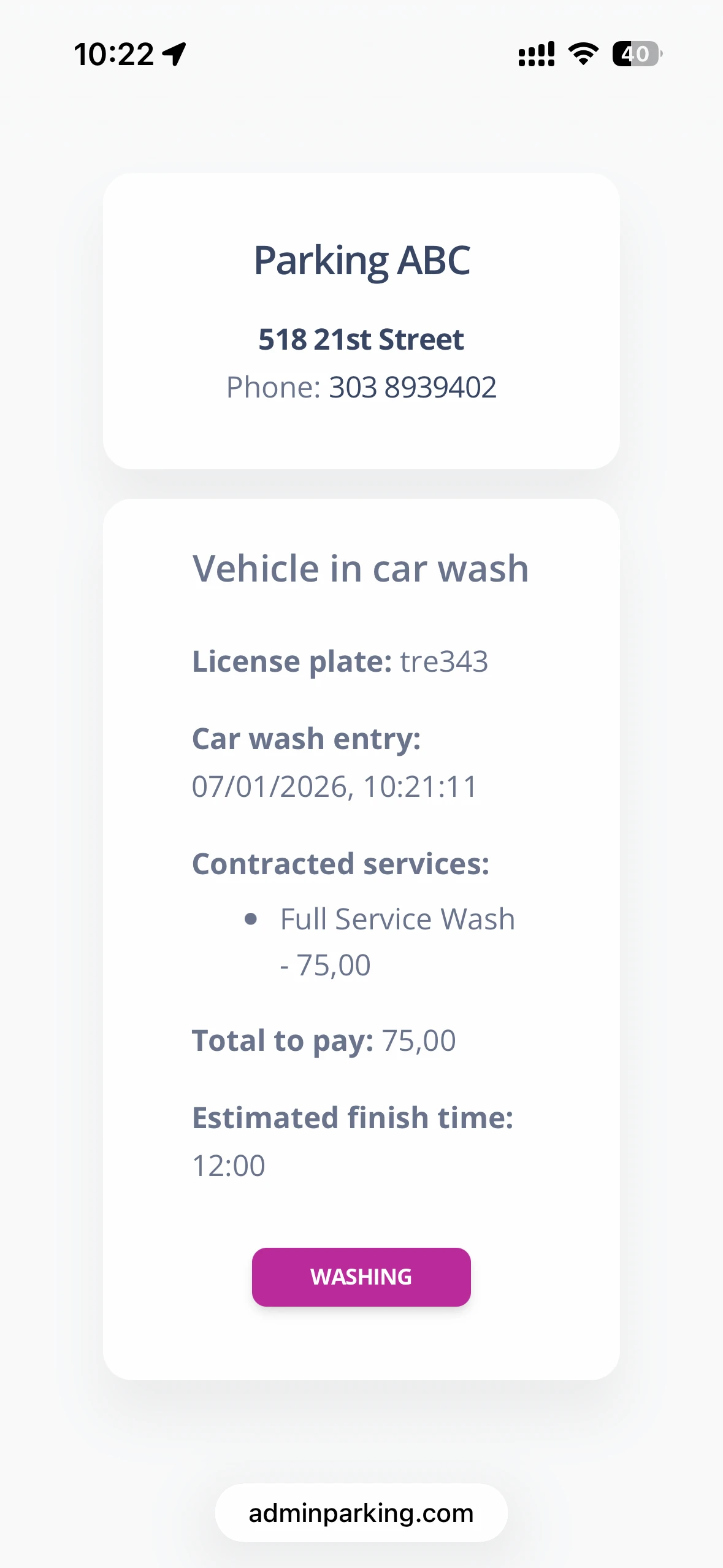
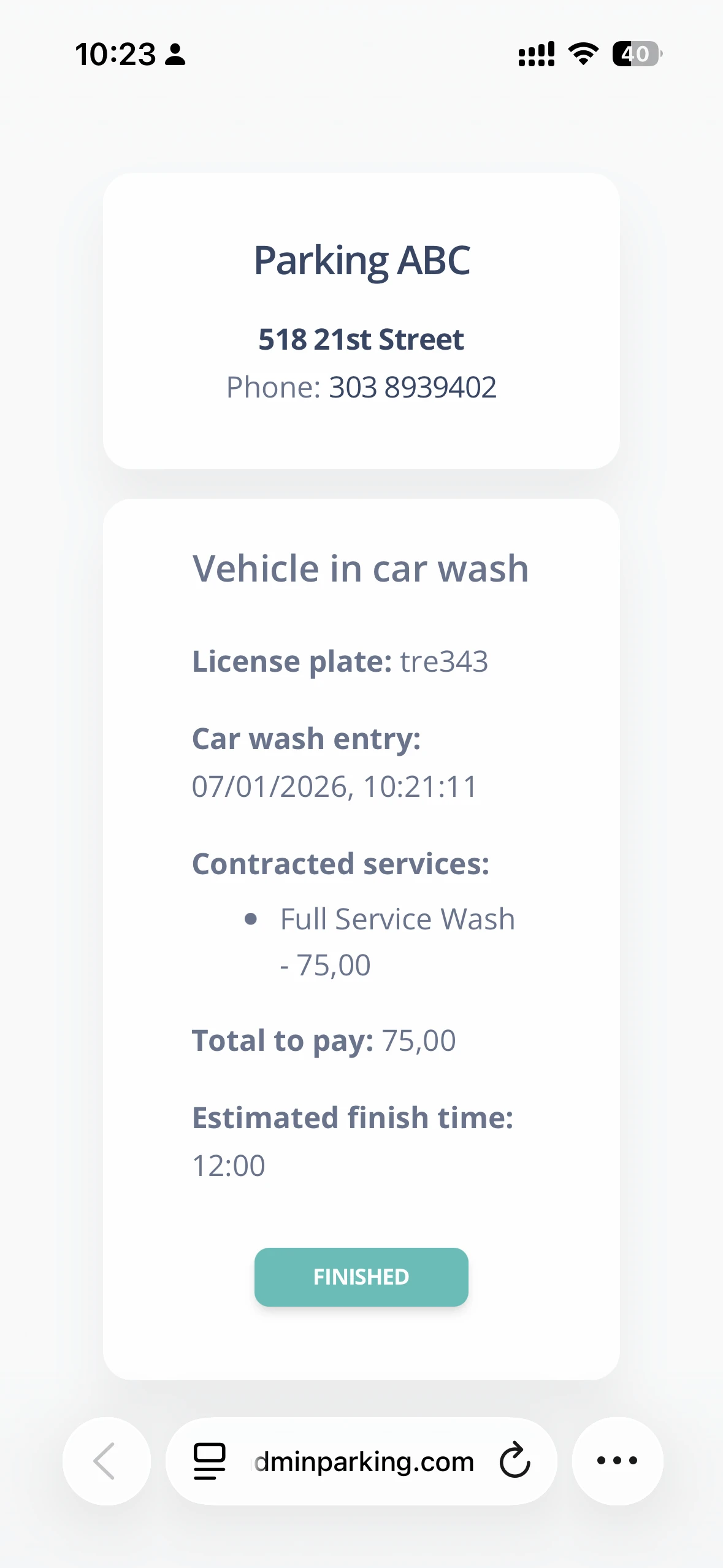
Internal QR code use
- When scanning the internal QR, essential service data is shown: entry time, contracted services, and process status.
- Available statuses:
- Waiting: The wash is pending.
- Washing: The vehicle is being washed.
- Completed: The service has ended and the car is ready for pickup.
- Tapping the status button updates it to the next status.
2 Vehicle exit from the car wash
Exit options:
- Enter the license plate manually.
- Scan the QR from the entry ticket.
Exit process:
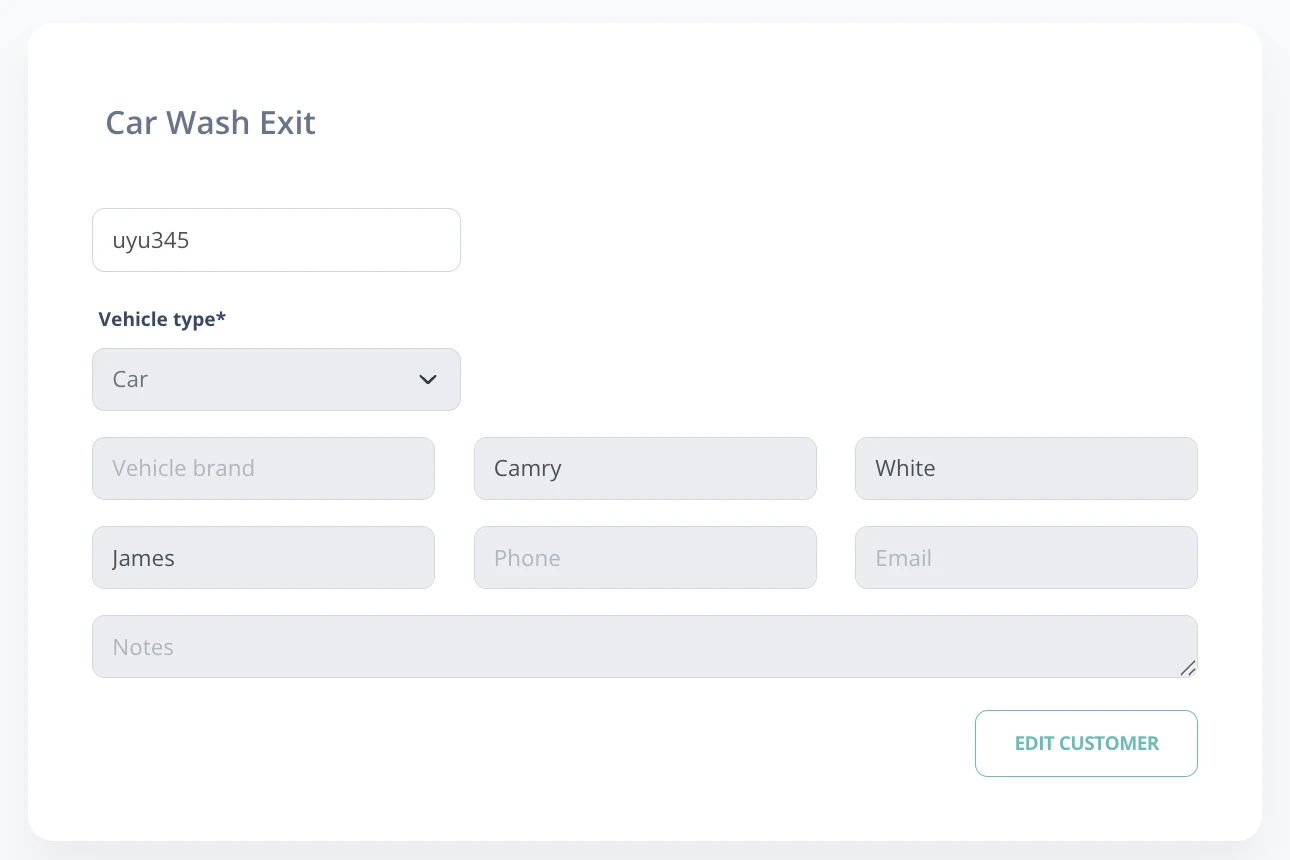
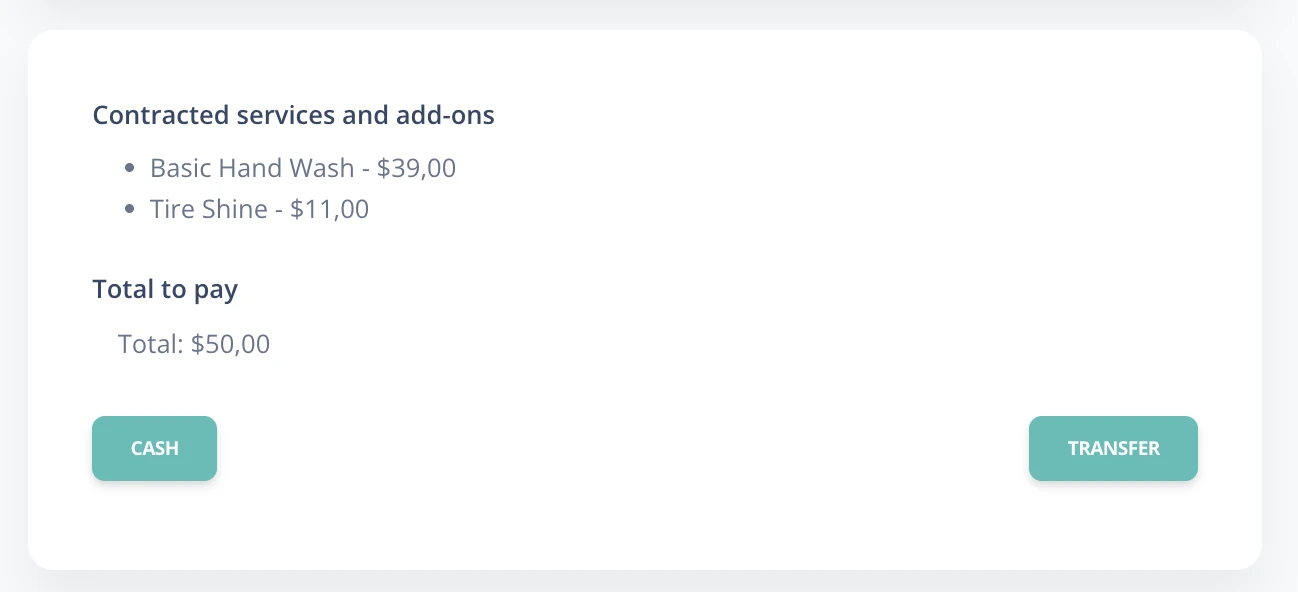
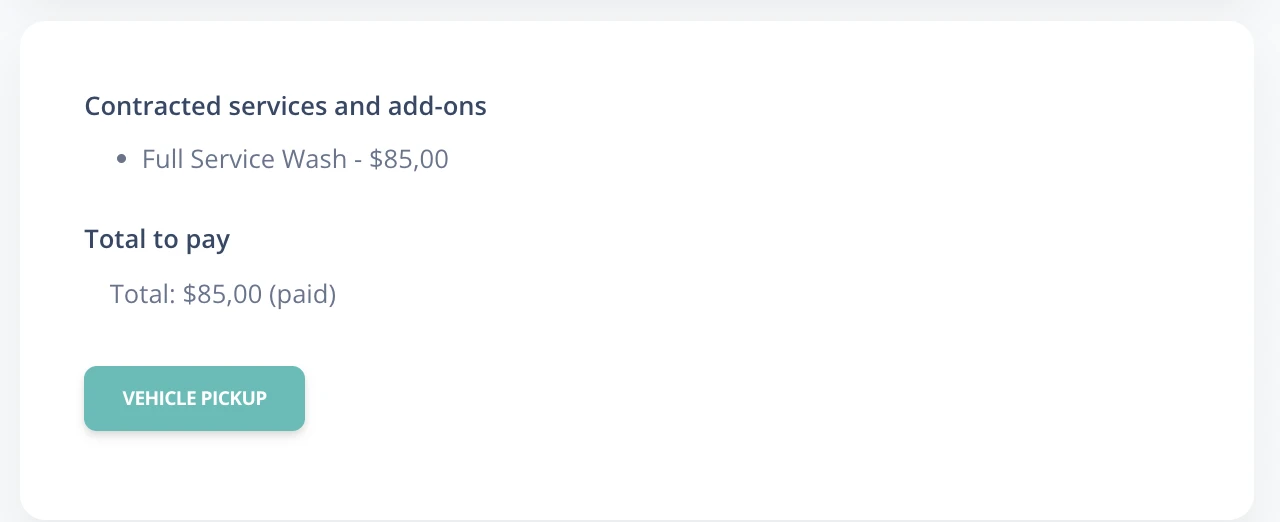
- When entering the plate or scanning the QR, contracted services and total amount due are shown.
- Payment methods: Cash, bank transfer, or online payment with Mercado Pago.
- Prepaid: payment will be confirmed and the vehicle pickup will be registered.
3 Vehicle management in the car wash
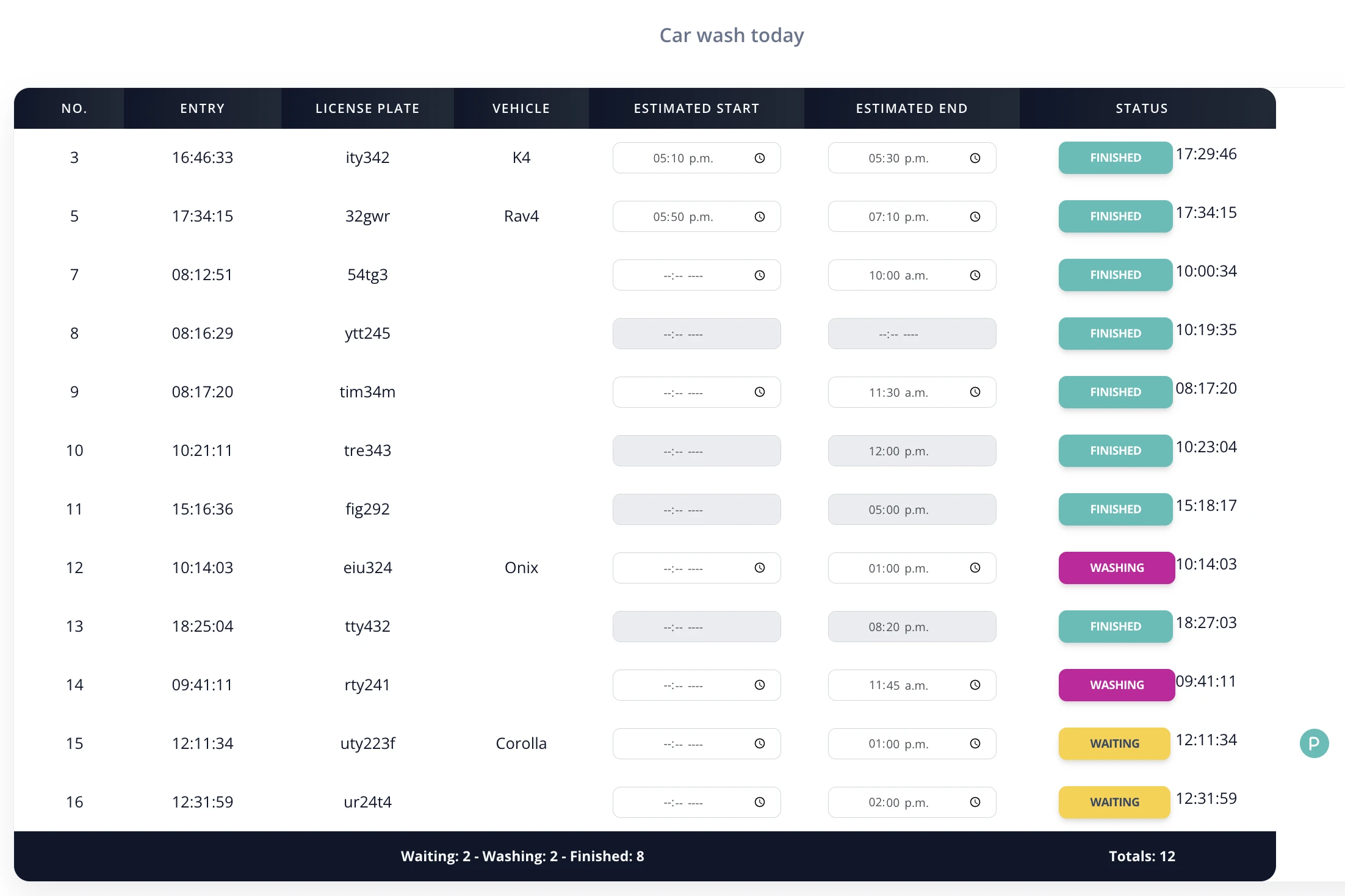
This section shows the current status of vehicles entered during the day.
Vehicle table:
- Includes: entry number, license plate, model, entry and exit times, and service status.
- Indicators:
- "P": Indicates that the service was paid.
- Check: Shows that the vehicle was picked up.
- Times can be edited directly in the table for better organization.
- Service statuses can be updated manually by clicking the corresponding button.
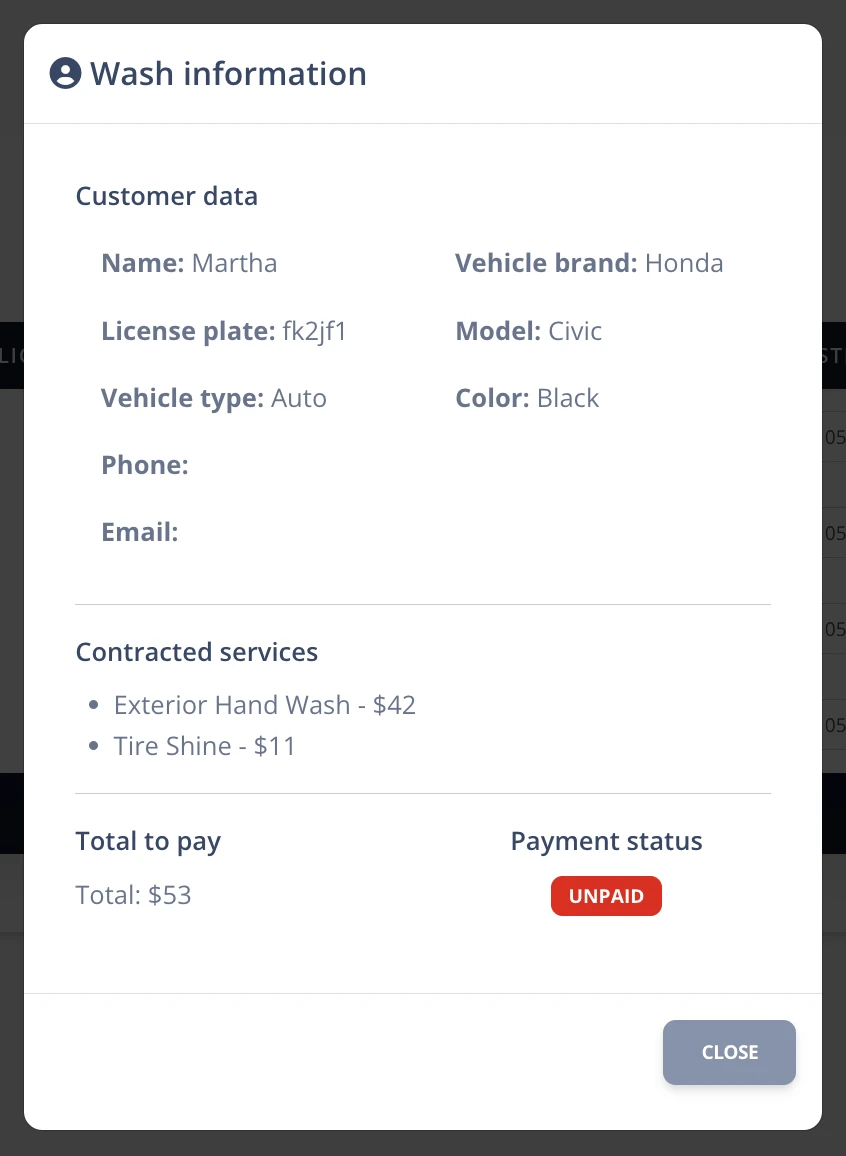
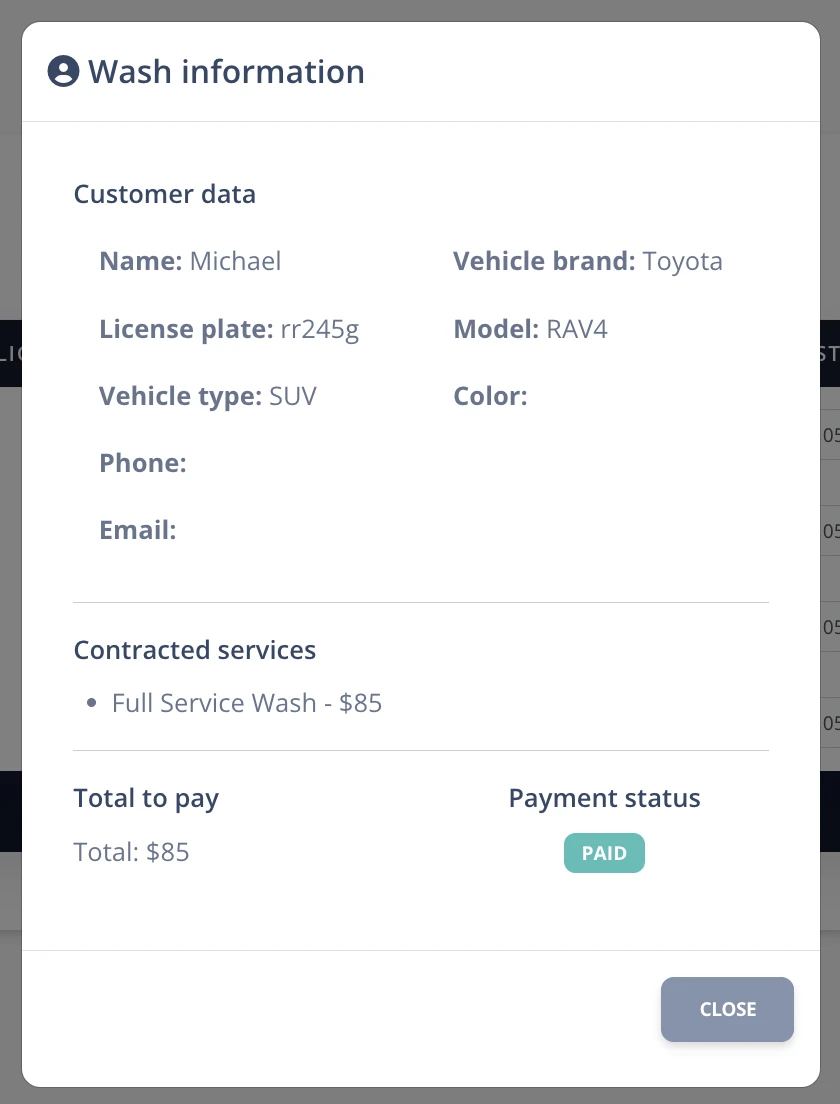
- Clicking any row opens the wash and customer detail.